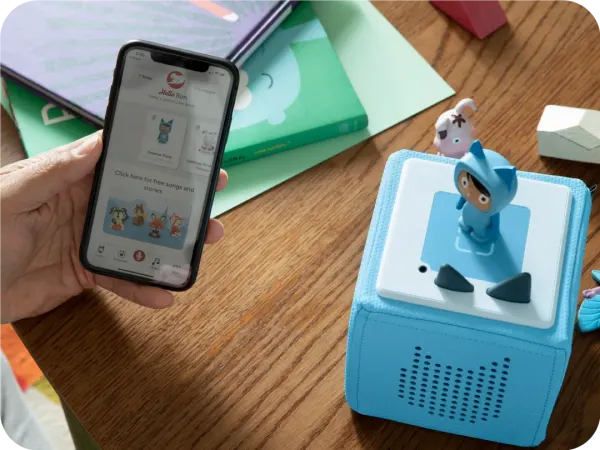
How to Set Up Your Toniebox 1
How do I set up my Toniebox 1?
Let us show you how to get your Toniebox 1 up and running in a matter of minutes. Have fun!
If you have any trouble setting up your Toniebox 1, please contact our support team stating your Toniebox ID.
How to set up your Toniebox 1:
Web setup
Using my.tonies.com/setup
-
Start the setup
Go to my.tonies.com/setup on your device. If you haven't already logged in or created a free Tonie Account, you will be met with the page below. Click "I want to get started".
-
Create your account
Here you can sign up for your free Tonie Account by entering your details and clicking "Sign up now". If you have already created a Tonie Account, click "Log in now" and sign in with your credentials.
-
Gather what you need
Make sure you have access to a 2.4 GHz Wi-Fi connection, your Toniebox 1, and the Toniebox 1 Charging Station. Also, make sure that your computer is connected via Wi-Fi and not directly connected with an Ethernet cable. When you are ready, click the "I want to get started!" button.
-
Enter your Toniebox ID
Enter your Toniebox ID. This is the 8-digit ID located on the bottom of your Toniebox 1 device. During this step, ensure the Toniebox 1 is not on its charger, otherwise, you will not be able to see your Toniebox ID. After you have entered your Toniebox ID, click "Great, carry on".
-
Give your Toniebox 1 a name
You can give your Toniebox 1 a name here. After you have entered a name, click the 'Next!' button.
-
Put your Toniebox 1 into setup mode
If you have not already, turn the Toniebox 1 on by placing it on the charger. Then, pinch both ears for about 5 seconds until you hear a chime and the LED begins to flash blue. Wait for about 20 seconds until you hear a second chime. Then, click the "Let's go!" button.
-
Connect to your Toniebox 1
Now you will need to connect to your Toniebox 1. This is done using a specific Toniebox 1 Wi-Fi network. Please note, that this is different from your normal home Wi-Fi network which we will connect to in a later step.
-
Open your network list
To connect to the Toniebox 1 Wi-Fi network, open the Network list on your device. In most cases, you can do this by clicking on the Wi-Fi icon in the bottom right corner of your screen.
-
Find and join the Toniebox 1 network
In the list of Wi-Fi connections, find the "Toniebox-####" network. The last 4 digits of the connection name will be different for each Toniebox 1. Click on the Toniebox 1 network name and then "Connect".
-
Continue the setup
Once the connection has been established with your Toniebox 1, open the webpage again and a new button will appear. Click 'Continue' to proceed.
-
Connect to your home Wi-Fi
Now you will connect to your home's 2.4 GHz Wi-Fi network. If your Wi-Fi network isn't already selected, you can click the dropdown arrow to view all available nearby Wi-Fi connections. Click on the name of your Wi-Fi network and then enter your Wi-Fi password. Tip: Click "Show password" to see your password and ensure all capitalization and spellings are correct.
Once you have entered the correct password, click "Connect to Toniebox".
-
Wait for the connection
Wait for the Toniebox 1 to establish the connection with your Wi-Fi.
-
Allow it to finish connecting
Continue to wait while your Toniebox 1 continues the connection process. This can take a minute or two. You may hear a few chimes and the LED on the Toniebox 1 will flash between blue and green. *If you are met with an error message, check out our support article: The Toniebox 1 flashes red and reports an error
-
All done!
Once your Toniebox 1 has connected to your Wi-Fi and downloaded any necessary updates, you will hear a welcome message and see "Congratulations" on your screen. The Toniebox 1 LED should also now be solid green.
-
Start using your Toniebox 1!
Your Toniebox 1 is now fully set up and ready for Tonies! Place a Tonie on the Toniebox 1 and it will begin to download its content and the LED will begin to flash blue. Once your Tonie has finished downloading all its content, the LED on the Toniebox 1 will turn solid green and an audible chime will sound. The Tonie can now play without a Wi-Fi connection. For more information on Tonie downloading, check out our support article: How do I download Tonies on my Toniebox 1?
Using the mytonies app on an iPhone with iOS
Using the mytonies app on an iPhone with iOS
-
Download the mytonies app
Download the mytonies app from the App Store (iPhone). Open the mytonies app and log in or create your free Tonie Account if you have not already. Once logged in, tap on the "Collection" icon in the bottom right corner.
-
Tap on the plus (+) sign
Tap on the red plus (+) sign next to 'Toniebox'
-
Tap ' Start setup process'
Tap ' Start setup process' at the bottom of the screen to begin the setup process.
-
Confirm the Toniebox 1 is on
Before you continue, place your Toniebox 1 on its charging station connected to a power source to ensure it is on and its LED is flashing green. Once this is complete, tap ' Continue'.
-
Pinch both ears
With the Toniebox 1 on and plugged in, pinch and hold both ears for approximately 5 seconds until the LED flashes blue and you hear a chime. Once you hear the chime, tap 'Continue'.
-
Confirm the LED colour
You will then be prompted to select what LED is currently showing on the Toniebox 1. At this stage, the LED should be flashing/blinking blue. When prompted, simply tap the ' Blue LED ' button.
-
Start the setup wizard
The setup wizard will begin the setup process and after a few seconds, you will see the ' Discovering ' window at the bottom of the screen. Wait for the setup wizard to load and find your Toniebox 1.
-
Set up accessory
Once your Toniebox 1 has been found, you will see a ' Set up Accessory ' window at the bottom of the screen and be prompted to pair your Toniebox 1 with the mytonies app and your smartphone. When prompted, simply tap ' Set up' at the bottom.
-
Complete setup in app
Once the Toniebox 1 has finished pairing, you will see the ' Complete Setup in App ' screen at the bottom. Tap ' Continue in App ' to complete the setup process.
-
Allow Toniebox 1 info to load
Wait until the ' Loading Toniebox info ' step is complete and has a green tick next to it, then tap ' Continue'.
-
You will now see a list of available Wi-Fi networks. Tap on the name of your Wi-Fi network to continue.
-
Connect to your Wi-Fi
Enter your Wi-Fi password. Tip: Tap the 'eye' icon on the right to see your password and ensure all capitalization and spellings are correct. Once you have entered the correct password, tap ' Continue'.
-
Connect and update
Wait while the Toniebox 1 connects to your Wi-Fi and downloads any available updates. This can take a minute or two and you may hear multiple chimes or beeps as the Toniebox 1 connects. *If you are met with an error message, check out our support article: The Toniebox 1 flashes red and reports an error
-
Toniebox is ready to play!
Once your Toniebox 1 has connected to your Wi-Fi and downloaded any necessary updates, you will hear a welcome message from the Toniebox 1 speaker and see a screen that reads " Congratulations! Your Toniebox is ready to play! ". The Toniebox 1 LED should also now be solid green.
Note: You can tap the "Personalize now (recommended)" button to make certain adjustments, such as volume and Toniebox 1 name, but these settings can be changed at any time.
- Your Toniebox 1 is now fully set up and ready for Tonies! Place a Tonie on the Toniebox 1 and it will begin to download its content and the LED will begin to flash blue. Once your Tonie has finished downloading all its content, the LED on the Toniebox 1 will turn solid green and an audible chime will sound. The Tonie can now play without a Wi-Fi connection. For more information on Tonie downloading, check out our support article: How do I download Tonies on my Toniebox 1?
Using the mytonies app on an Android smartphone
Using the mytonies app on an Android smartphone
-
Download the tonies® app
Download the tonies® app from the Google Play Store (Android). Open the tonies® app and log in or create your free Tonie Account if you have not already. Once logged in, tap on the "Collection" icon in the bottom right corner.
-
Tap on the plus (+) sign
Tap on the red plus (+) sign next to 'Toniebox'
-
Tap ' Start setup process'
Tap ' Start setup process' at the bottom of the screen to begin the setup process.
-
Enter your Toniebox ID
This is the 8-digit ID located on the bottom of your Toniebox 1 device. Ensure the Toniebox 1 is not on its charger, otherwise, you will not be able to see your Toniebox ID. Once you have entered your Toniebox ID, tap ' Continue'.
-
Confirm the Toniebox 1 is on
Before you continue, place your Toniebox 1 on its charging station connected to a power source to ensure it is on and its LED is flashing green. Once this is complete, tap ' Continue'.
-
Place the Toniebox 1 on the charger
Place the Toniebox 1 on the charger to turn it on (if you haven't already). Then, pinch both ears for about 5 seconds until you hear a chime and the LED begins to flash blue. Wait for about 20 seconds until you hear a second chime. When you hear the second chime and the LED starts to flash blue slowly , tap " Continue".
Note: If you are met with an error message or see a red flashing LED at this stage, check out our support article: The Toniebox 1 flashes red and reports an error
-
Confirm the LED colour
You will then be prompted to select what LED is currently showing on the Toniebox 1. At this stage, the LED should be slowly flashing blue (in and out). When prompted, simply tap the ' Blue Flashing LED ' button.
-
Connect to device
The Toniebox 1 will now attempt to connect to your smartphone. When you see the box that says " Connect to device? ", tap the " Connect " or " Allow " button. This is an important step to complete the Wi-Fi connection process.
Note: You may see a slightly different message depending on the Android version you are using.
-
Wait for connection
Wait for the Toniebox 1 to completely connect to your smartphone. This can take a few seconds.
-
Select your network
Once the Toniebox 1 has connected to your smartphone, you will see a list of available Wi-Fi networks. Tap on the name of your Wi-Fi network to continue.
-
Connect to your network
Enter your Wi-Fi password. Tip: Tap the 'eye' icon on the right to see your password and ensure all capitalization and spellings are correct. Once you have entered the correct password, tap ' Continue'.
-
Wait for connection
Wait while the Toniebox 1 connects to your Wi-Fi and downloads any available updates. This can take a minute or two and you may hear multiple chimes or beeps as the Toniebox 1 connects. *If you are met with an error message, check out our support article: The Toniebox 1 flashes red and reports an error
-
Your Toniebox 1 is ready to play!
Once your Toniebox 1 has connected to your Wi-Fi and downloaded any necessary updates, you will hear a welcome message from the Toniebox 1 speaker and see a screen that reads " Congratulations! Your Toniebox is ready to play! ". The Toniebox 1 LED should also now be solid green.
Note: You can tap the "Personalize now (recommended)" button to make certain adjustments, such as volume and Toniebox 1 name, but these settings can be changed at any time.
-
Play with your Toniebox 1!
Your Toniebox 1 is now fully set up and ready for Tonies! Place a Tonie on the Toniebox 1 and it will begin to download its content and the LED will begin to flash blue. Once your Tonie has finished downloading all its content, the LED on the Toniebox 1 will turn solid green and an audible chime will sound. The Tonie can now play without Wi-Fi.